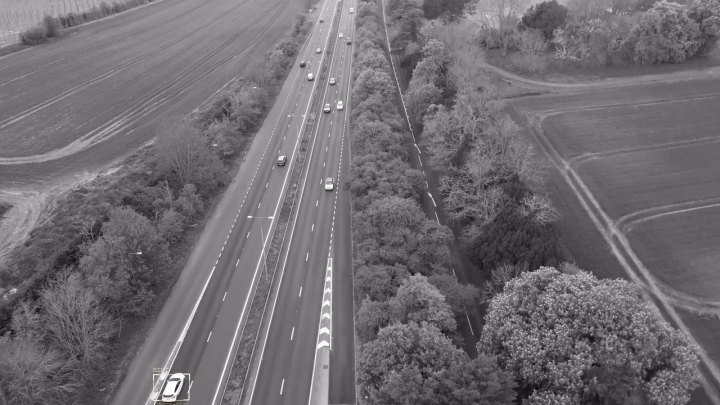
01 · Select
Pause the imagery or video and select the object you want to find. Optional text and hard-negative examples can further define the search.


LOCK
Select the object you're interested in, create the LOCK, and use that same query to search additional imagery or video. No training pipeline. No new model checkpoint.
No training loop. No reachback.
How it works
01 · Select
Pause the imagery or video and select the object you want to find. Optional text and hard-negative examples can further define the search.
02 · Create
LOCK converts that example into a portable visual query. The underlying model weights do not need to be retrained.
03 · Search
Use the LOCK to search the current collection or compatible imagery elsewhere in the workflow. Candidates can be scored, reviewed, tracked, or passed downstream.
Why LOCK
Search for a new object without building a new training dataset.
Carry the query instead of carrying a newly trained model.
Designed for workflows where imagery stays with the user.
Integrate LOCK into an existing application, processing pipeline, or mission system.
Access
LOCK is designed to add a capability to an existing workflow rather than replace the systems around it. Built to plug in, not take over.